

Modern smartphones have incredibly advanced cameras, making them one of the best tools for digiscoping and wildlife photography. But there’s one frustrating problem many birders and outdoor photographers run into: your phone keeps switching lenses.
One second your image is perfectly aligned through your spotting scope, and the next your phone jumps to another camera lens, leaving you with a black or misaligned image.
If you want the best digiscoping experience possible, learning how to lock your smartphone onto the correct camera lens is essential. Here are the best ways to keep your phone locked onto the right lens for sharp, stable images in the field.

Why Phones Switch Camera Lenses Automatically
Most modern smartphones use multiple camera lenses. Just take a look at the back of your phone and see how many lenses it has. Most current models use at least three lenses, and your phone will automatically select which one to use depending on zoom level, lighting conditions, or any special settings and filters you may be using.
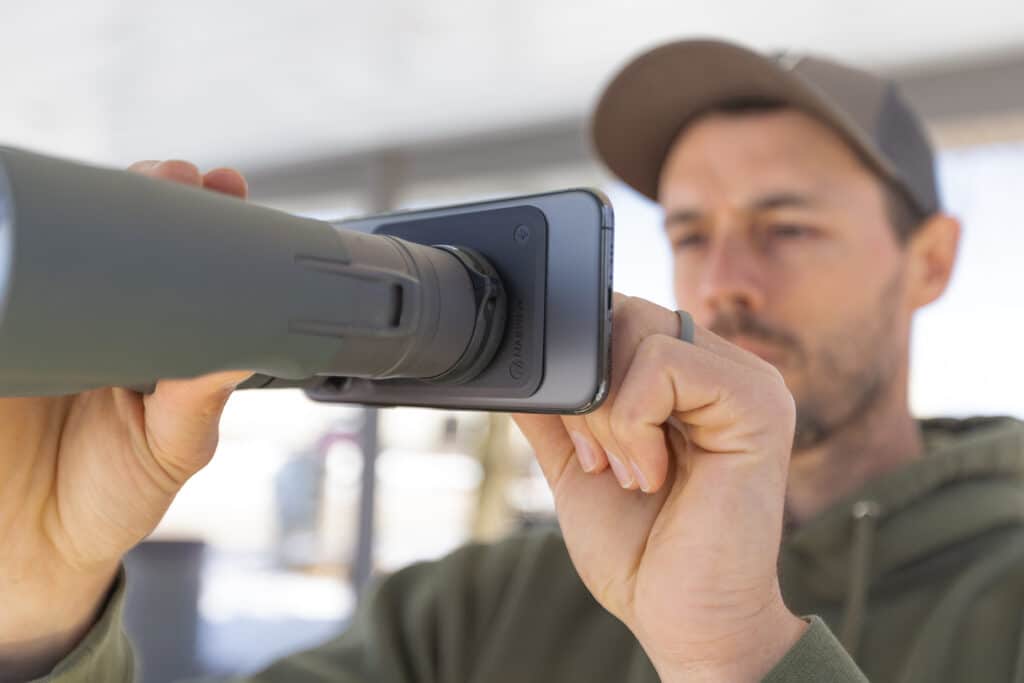
While this works great for everyday photography, it can create major problems when digiscoping through a spotting scope or binoculars. When aligning your phone on a MAGVIEW® digiscoping adapter, the lens may switch when the camera gets close to the optic or when zooming in after connecting the phone to achieve a full-screen image.
This usually results in a loss of alignment, a blank image, black circles around the picture, soft focus, or a jumping and flickering image.

How to lock your camera for the best digiscoping experience
iPhone®
iPhone users have one of the easiest methods for locking the camera lens, but many users don’t know this feature exists or how to use it. Before mounting your phone to a MAGVIEW adapter, open the Camera app and press and hold your finger in the middle of the screen for a few seconds. A yellow notice will appear, letting you know the camera focus and exposure are now locked.
Once locked, you can mount your phone to your digiscoping adapter and zoom in for a full image without the phone switching lenses.
Android™
For Android phones, the camera lock procedure can vary depending on the manufacturer and model. Many Samsung® devices include a “Pro” mode that can be accessed through the camera settings. For Google® Pixel users, you can open the camera settings and adjust Macro Focus settings to help prevent unwanted lens switching.
Once these settings are enabled, your camera is less likely to switch lenses, making it easier to start digiscoping with a MAGVIEW adapter. Other phones may use different names or symbols for these settings, so we recommend checking your owner’s manual or searching for your specific phone model if these methods do not apply.
Third Party Apps
There are several third-party apps that provide expanded control over your phone’s camera settings. Some are designed specifically for digiscoping, while others are built for advanced photography and video. These apps can help lock your phone to a specific lens and reduce unwanted switching while using your optic.
You may want to try a few different apps to find the one that works best for your setup.
Conclusion
Locking your phone’s camera lens is one of the simplest ways to improve your digiscoping experience. By preventing your phone from automatically switching cameras, you’ll get more consistent alignment, reduced vignetting, and sharper photos and videos through your optic. Whether you use your phone’s built-in settings or a third-party camera app, taking a few moments to lock in the correct lens before heading into the field can make every shot smoother and more reliable.